This tutorial shows how to retrieve a list of files from Google Drive through the Google Drive REST API and display those files in a PHPRunner or ASPRunner.NET application.
The example focuses on listing and viewing files. The same REST API can also be used for other Google Drive operations when the appropriate permissions are granted.
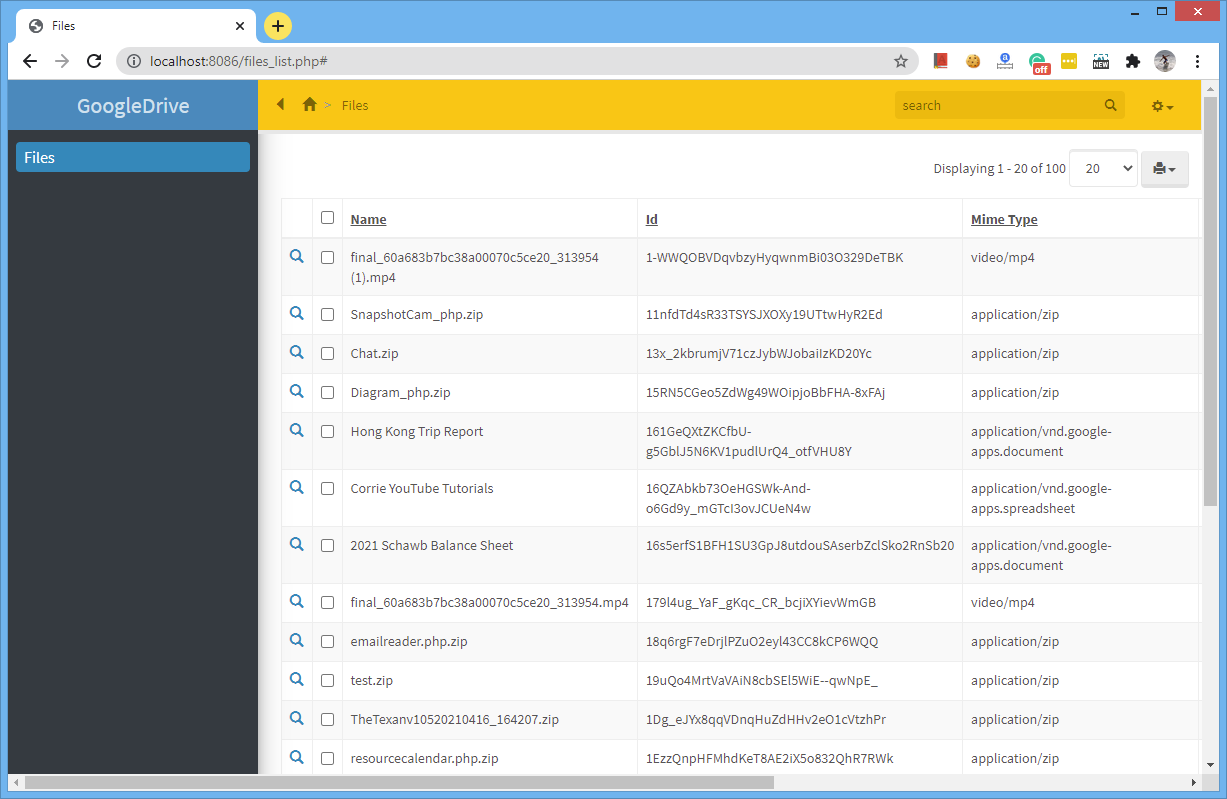
Update note: The Google OAuth setup in this article has been updated. Google Drive still uses OAuth 2.0, but the Google Cloud configuration and scope guidance have changed since the original article was published.
1. Create a Google Cloud project and enable the Drive API
Proceed to the Google Cloud Console and create a new project or select an existing one.
Enable the Google Drive API for that project.
You can find it under APIs & Services by searching for Google Drive API and clicking Enable.

The screenshot above shows an earlier version of the Google Cloud interface. The exact menu layout may change, but the required step is still to enable the Google Drive API in your project.
2. Configure OAuth consent and Drive permissions
Configure the OAuth settings for your application in Google Cloud.
Depending on the current Google Cloud interface, these settings may appear under Google Auth Platform and include sections such as Branding, Audience and Data Access.
Set up the application name and support information, choose the appropriate audience, and add the Google Drive scope required by the application.
For this tutorial we only need to retrieve file metadata and display links to files, so use:
If your application needs to download the contents of all files, you may need a broader scope such as:
Do not request broader access unless the application actually needs it.
If your OAuth application is still in Testing mode and uses an External audience, add the Google accounts that will test the application as test users.
For current information about Drive scopes, see the Google Drive API authorization documentation.
3. Create OAuth client credentials
Create an OAuth client for the project and choose Web application as the application type.
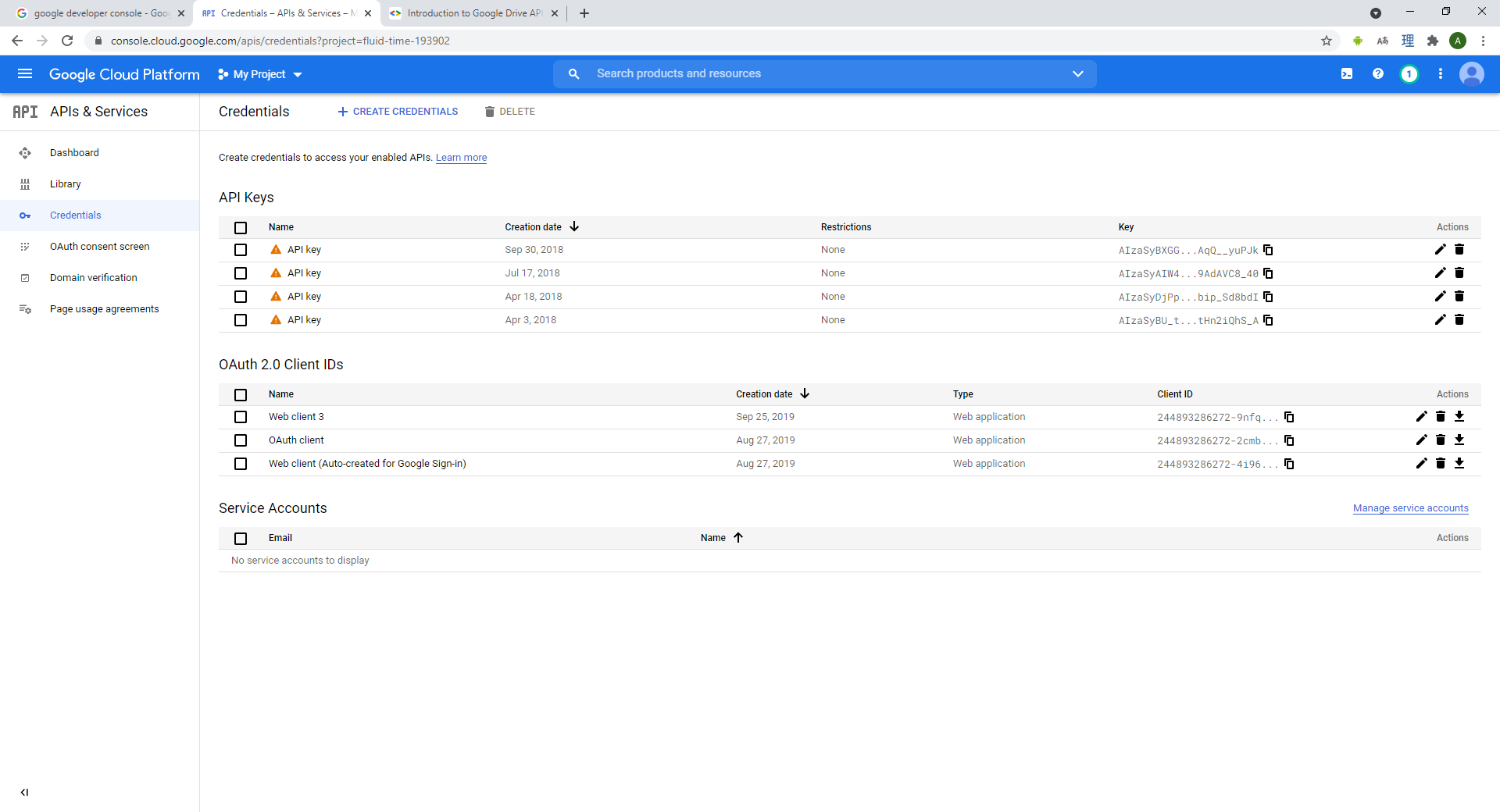
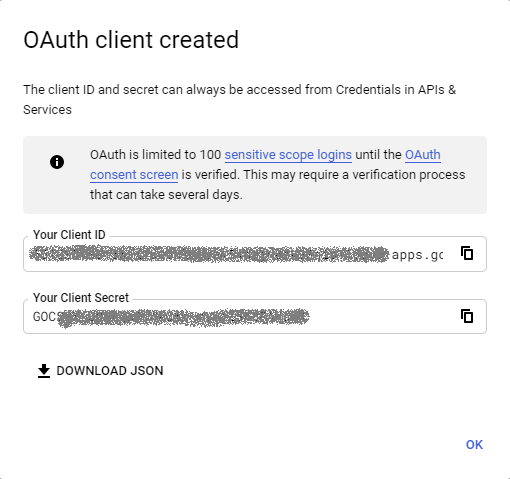
These screenshots show the older Google Cloud interface, but the information you need is the same: create a Web application OAuth client and obtain its Client ID and Client Secret.
Add an Authorized redirect URI that points back to your generated application.
For local PHPRunner testing:
For local ASPRunner.NET testing:
For a published PHPRunner application:
For a published ASPRunner.NET application:
Replace yourwebsite.com/project with the actual URL of your application.
The redirect URI entered in Google Cloud must match the application callback URL exactly.
4. Create the REST API connection
In PHPRunner or ASPRunner.NET, add a new REST API connection and choose OAuth 2.0 – User as the authentication method.
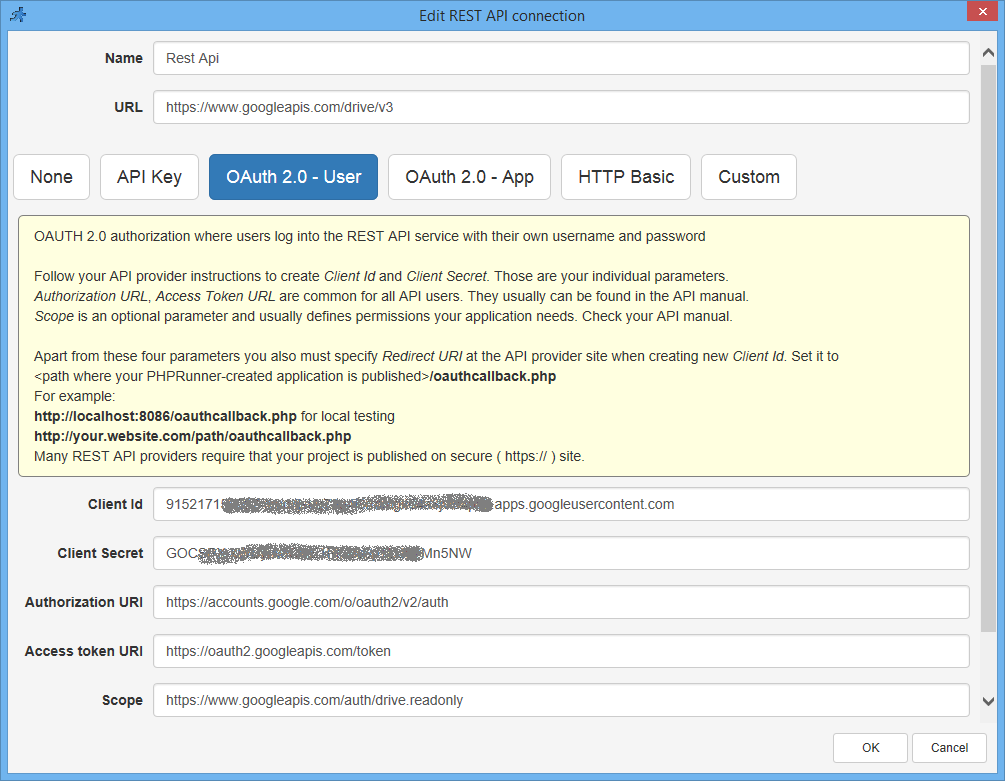
Use this REST API URL:
Enter the Client ID and Client Secret created in Google Cloud.
Use the following OAuth settings.
Authorization URI
Access token URI
Scope
For more information about REST API connections, see the PHPRunner REST API Connections documentation or the ASPRunner.NET REST API Connections documentation.
5. Enable the List operation
The Google Drive API v3 endpoint for listing files is:
In the REST View, enable the List operation.
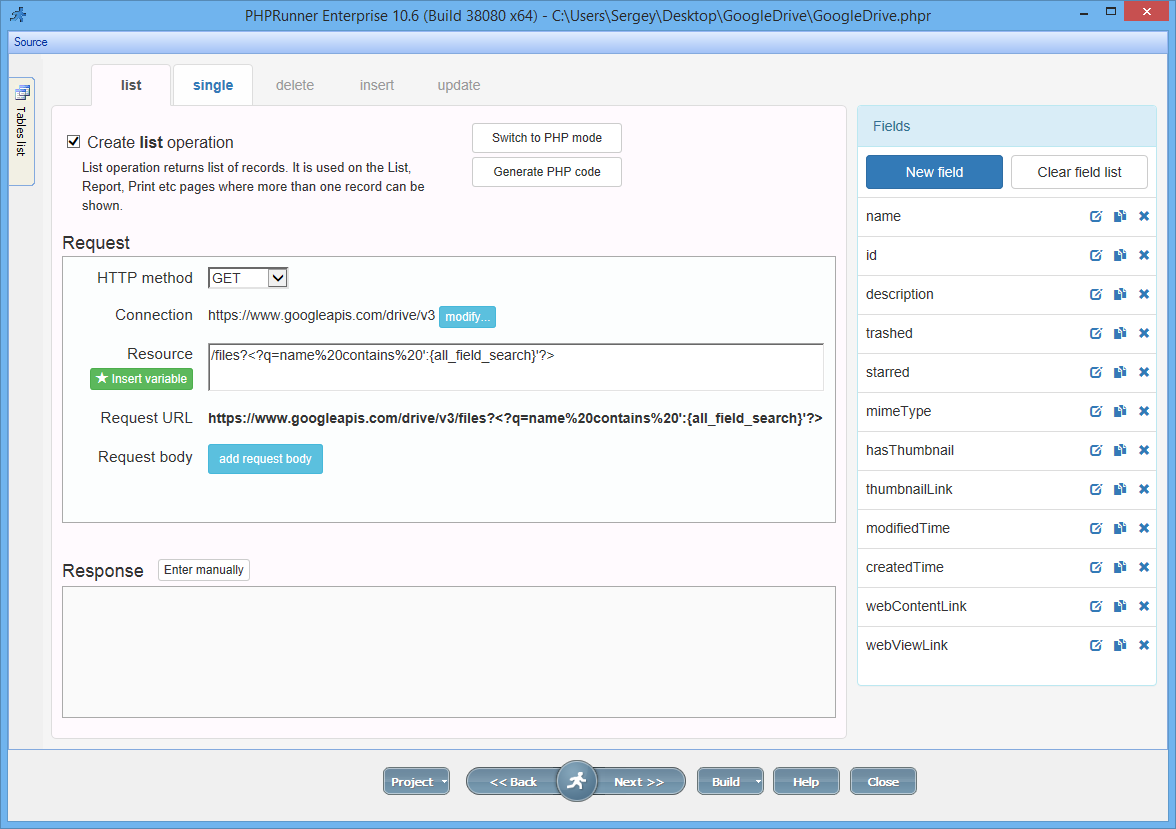
To preserve the original example’s All Fields search, use the following Resource:
The q parameter is the Google Drive API search expression. In this example, the generated application’s All Fields search is used to find files whose names contain the search text.
6. Add the fields you want to display
With OAuth 2.0 – User connections, define the response fields used by your REST View.
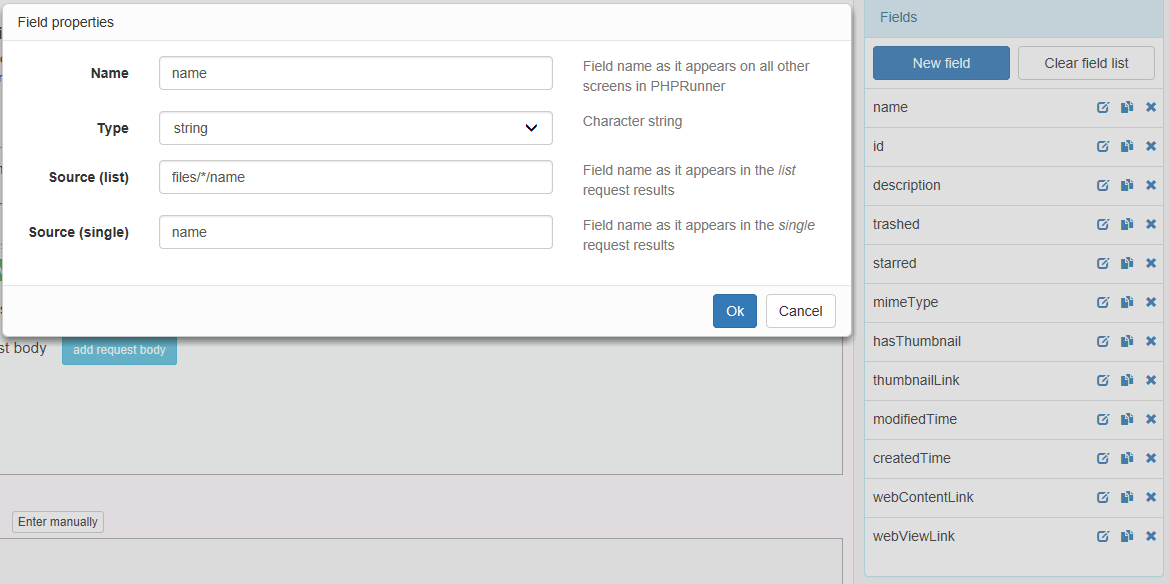
Useful Google Drive file metadata fields for this example include:
- id
- name
- description
- mimeType
- trashed
- starred
- createdTime
- modifiedTime
- webViewLink
The id value uniquely identifies the Google Drive file. The webViewLink value can be used to open the file in the appropriate Google Drive viewer or editor.
Google Drive supports many additional File resource fields, so add only the fields your application actually needs.
7. Enable the Single operation
Enable the Single operation to retrieve one file by its Google Drive file ID.

Use:
For a production application you can also request only the fields you need instead of using fields=*.
For example:
Troubleshooting OAuth
If Google reports a redirect_uri_mismatch error, compare the callback URL generated by your application with the Authorized redirect URI configured in Google Cloud. They must match exactly.
If an application in Testing mode does not allow a user to authenticate, make sure that Google account has been added as a test user.
Google OAuth access tokens are short-lived. Long-running OAuth integrations use refresh tokens to obtain new access tokens without asking the user to authenticate for every request.
Also remember that Google treats several Drive-wide scopes, including drive.metadata.readonly and drive.readonly, as restricted scopes. Public applications that use these scopes may be subject to Google’s OAuth verification requirements.
For current Google documentation, see the Google Drive authorization guide, the OAuth 2.0 Web Server guide and the Drive API v3 files.list reference.
nice how about dropbox have you got a similar example ? thanks