AI assistant panel layout
You can use the power of AI to help you write the code in events. To open AI assistant panel click 'Ask Cody' button on the toolbar in Event Editor. Here is a screenshot that explains Ai assistant panel layout.
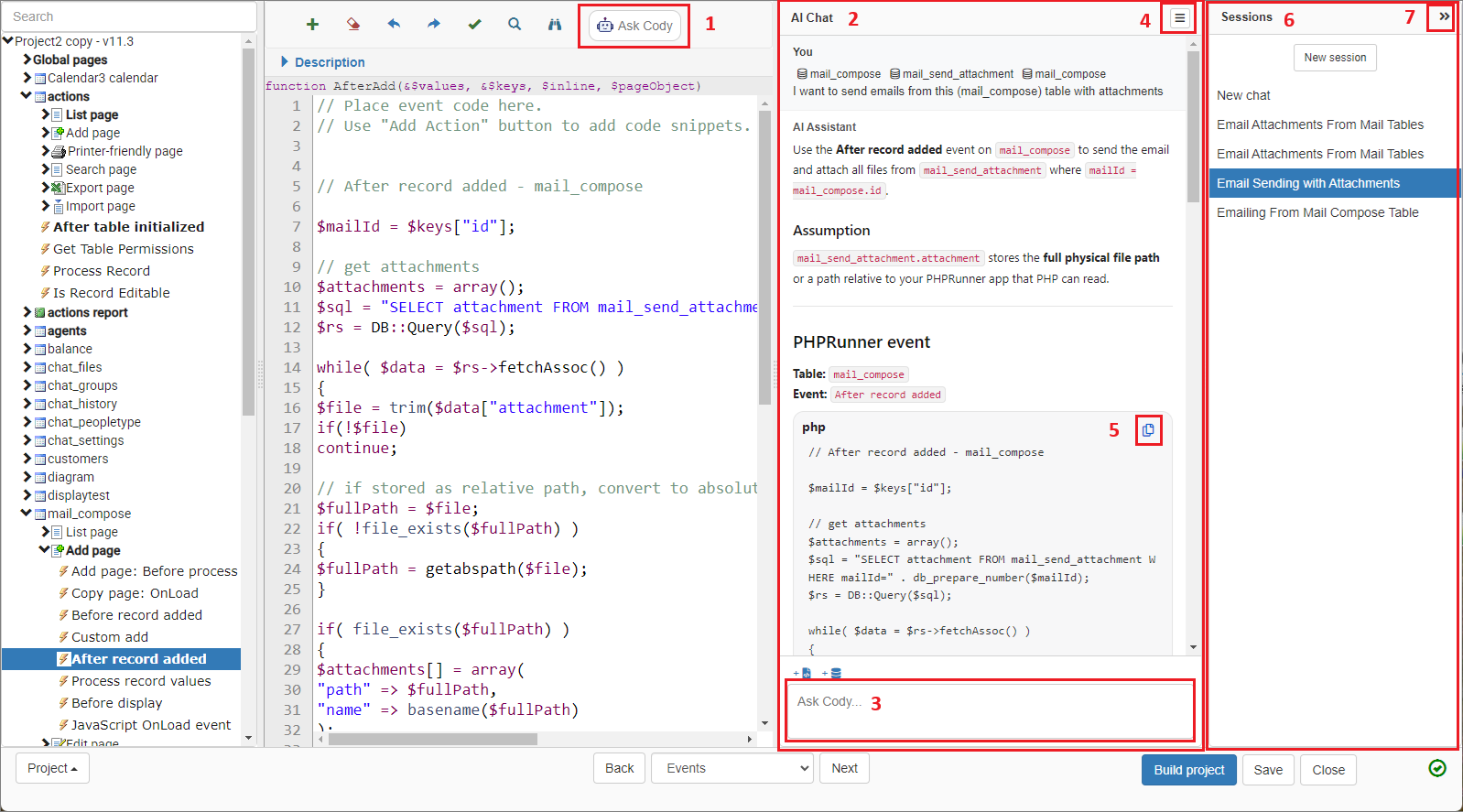
1. 'Ask Cody' button. Opens or closes AI assistant panel.
2. AI chat window
3. Prompt window. This is where you ask Cody questions and tell him what to do. Above that window there are buttons that allow you to attach the code of the existing event and definitions of additional tables that might be relevant
4. AI assistant settings
5. Copy button. When Cody's response contains code, we show an option to copy this code to clipboard.
6. AI chat sessions panel. You can use it to see previous conversations with Cody.
7. Button that expands or collapses chat sessions panel.
AI settings
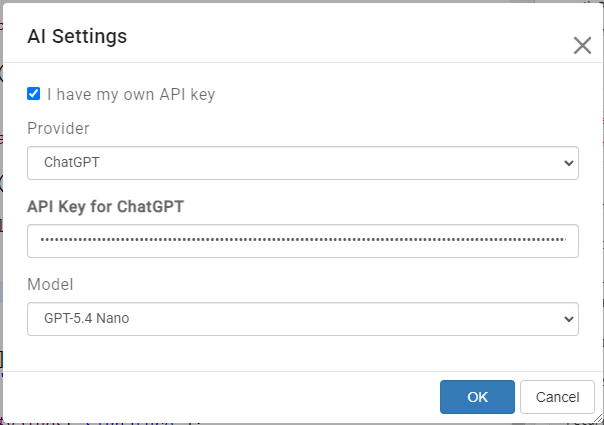
By default you can utilize free AI help provided by our company. Free AI usage has built-in daily limits. The limits are quite generous but if you are a heavy AI user to simply prefer to use your own AI engine, you can enter your own AI API key. To do so, click AI settings button, choose AI engine, enter your API key and also choose AI model. Better models will cost you more and you can compare the costs of different models on respective AI engine website.
At this moment we support OpenAI, Claude AI and Gemini. We do plan to support more engines.
Typical AI assistance workflow
A typical workflow starts with opening the event you want to create or modify, then opening the AI assistance panel. Enter your prompt, review the suggested code, copy it, and paste it into your event code. If the code does not work as expected, ask the AI assistant to correct it and repeat the process.
Above the prompt box, you will find buttons that let you attach the existing event code or definitions of additional tables. By default, PHPRunner automatically sends the definition of the current table. Attaching existing event code is useful when you want to modify code that is already there. Attaching additional table definitions is useful when your code needs to work with multiple tables.
As a rule of thumb, start a new AI session for each new task or event. This helps prevent confusion, keeps the conversation focused, and can also reduce AI usage costs.
See also: