Quick jump |
Press the Permissions button on the Security screen to open the popup with user group permissions.
The User group permissions popup allows you to assign table-level access to groups of users.
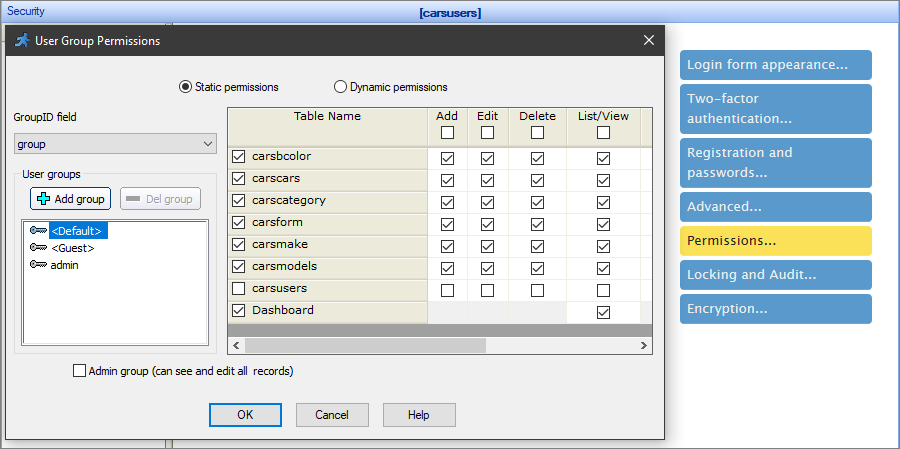
For example, you can set up the permissions, so that users by default cannot edit/delete the Cars table, guests cannot view any tables, other than Cars, and Admins have access to every page of the table.
Starting with ASPRunnerPro version 10.3, you can set individual permissions for table pages and additional pages. This option works for both Static and Dynamic permissions.
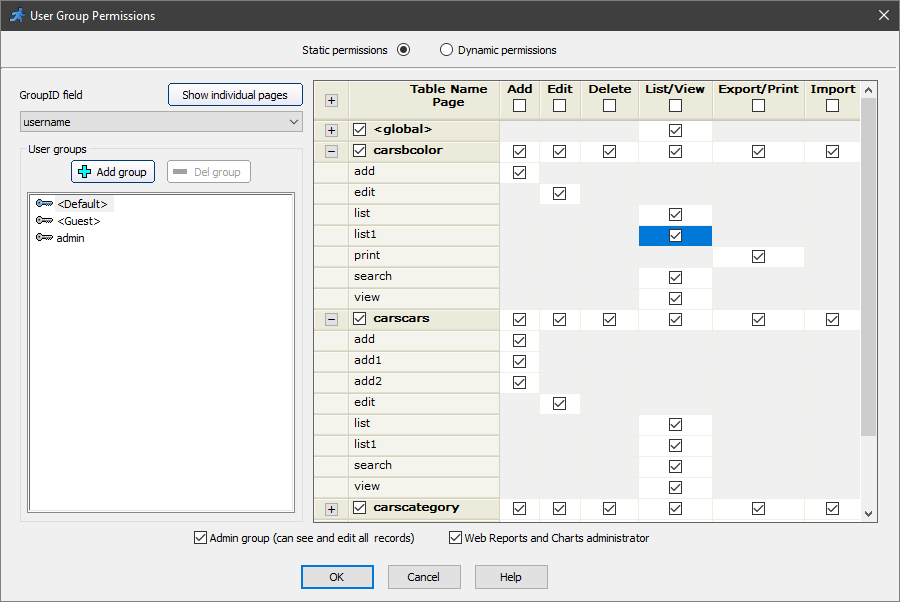
There are two ways to define the user group permissions:
Static permissions
You can edit the permissions in ASPRunnerPro directly before building the project.
This option works best when you are the only person who can edit the permissions. Keep in mind that you need to rebuild and publish the project each time you make the changes.
Dynamic permissions
Administrators can edit the permissions online, in the admin panel of the generated app.
This option works best when you have multiple administrators.
Note: when you select Dynamic permissions, ASPRunnerPro creates new tables in the database to store the user group permissions settings. You can set the prefix for the new names of the tables.
See Dynamic permissions to learn more.
You can create user groups and assign the permissions for each group on this screen.
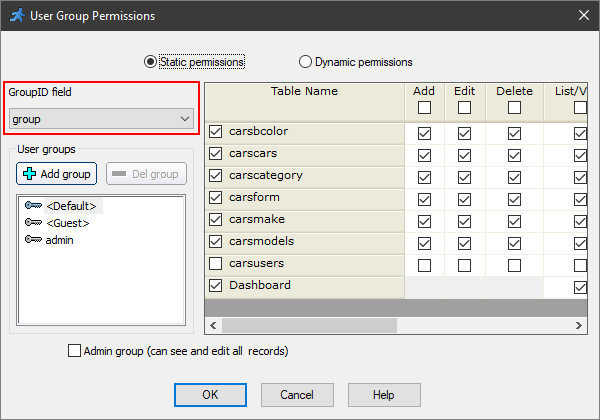
First, choose the GroupID field that stores the group name or ID.
Then you can add a new group. To do this, click the Add group button. A dialog window appears where you can choose the existing user group, based on the values in the GroupID field of the Users table, or create a new group to add the users later.
Define the initial permissions of the selected group with the checkboxes on the right side of the window.
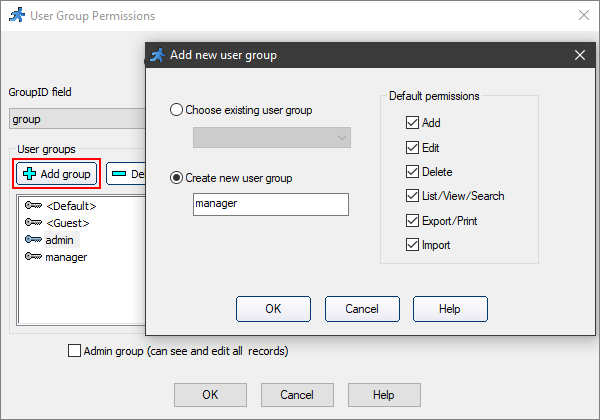
To delete the selected group, click the Del group button. To overwrite an existing group, click the Add group button and choose the existing GroupID value.
You can also set up the default group - a default set of permissions for authorized users. Every user without a group is automatically assigned to the Default group.
If you enabled the guest access, the Guest group appears in the Permissions popup. You can set up the permissions for any user that logs in as a guest.
If you have selected any option, other than the default, in the Advanced security settings, a new checkbox called Admin group appears in the Permissions popup. Select it to make the current group an admin group.
Security screen articles:
•CAPTCHA on authentication pages
See also: