Quick jump |
Events are fragments of ASP or JavaScript code that are executed automatically when certain conditions are met, for instance: a record was added to the database, or the user opened the List page. You can use sample event code snippets or write the code on your own.
Here are a few examples of events:
•send an email containing the data from a new record or showing changes to an existing record;
•save new data in another table;
•check if a specific record exists;
•limit the number of records a user can add.
There are two types of events: Global and Table events. Global events can be used with any table/view. Table events work with a specific table/view.
Event Editor toolbar description
Button |
Description |
|
Allows adding one of the predefined actions. |
|
Erases the event code. |
|
Reverses the last operation. |
|
Reverses the last "Undo" operation. |
|
Checks the event code syntax. |
|
Opens the Search and Replace dialog. Note that you can search and replace content in all events as well as the selected one. |
|
Opens the Find All dialog. |
|
Displays the revision history panel. |


1. Go to the Events screen.
2. Select an event from the tree in the left pane. To show only the events with code in them, click the  button. To filter the events by name, use the text field above the tree in the left pane.
Each event has a collapsible hint with the event description, function syntax, and a list of parameters. To hide the hint, click the  button.
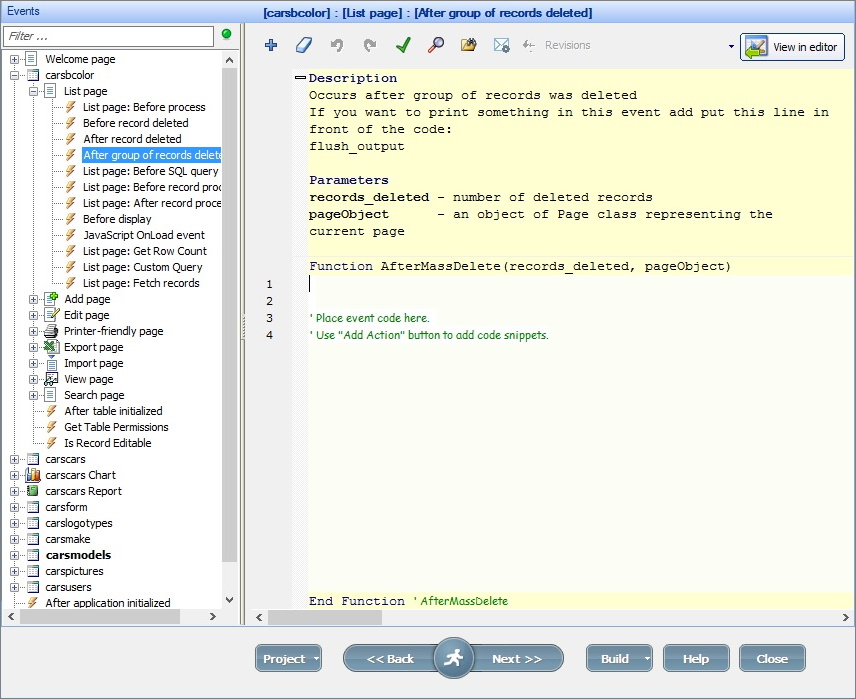
Note: you can change the font size on the Event and Editor screens. Hold CTRL and scroll the mouse wheel to do so.
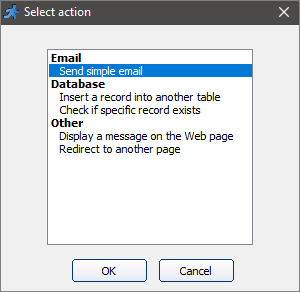
3. Add the code or click the  button to open the predefined actions popup.
To learn more, see these articles:
•Sample events - examples of commonly used events with code snippets.
•Common parameters you can use in the events.
4. Choose one of the predefined actions to add a code snippet to the event.
5. Modify the code snippet by inserting the necessary values instead of the ones colored in red.
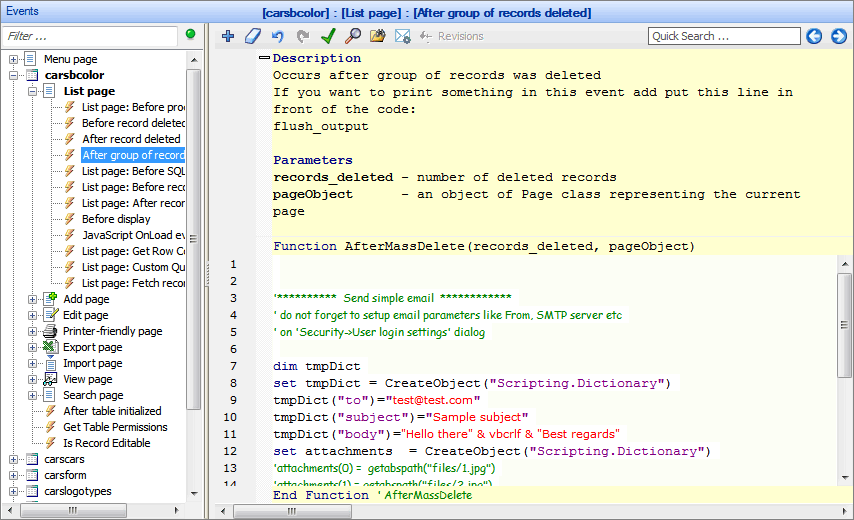
In the example above, you need to insert:
•the email address - instead of "test@test.com";
•the email message - instead of "Hello there" and "Best regards".;
•the email subject - instead of "Sample subject".
Note: you can add more than one predefined action to an event.
To edit the event, select an event and modify the code. To delete the event, select an event and click the  button.
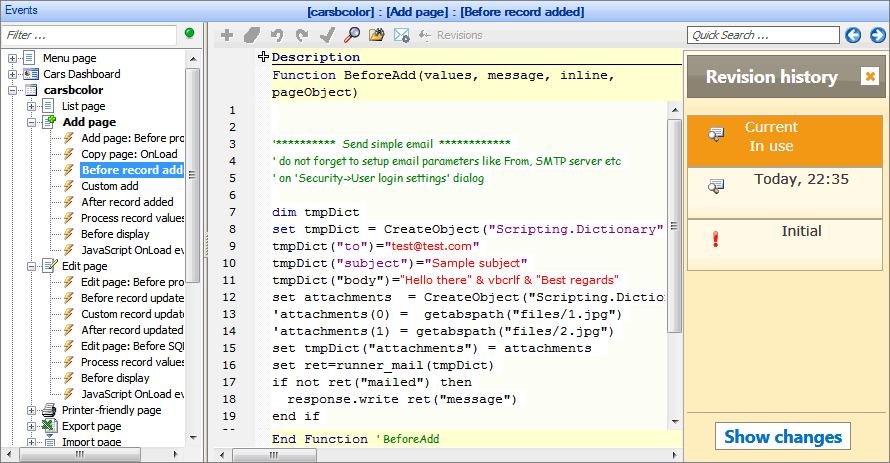
You can track the changes made to any event, review and restore any revision. To see the revision history, click the Revisions button.
Click Show changes at the bottom of the revision panel to see the changes between the current and previous revisions.
To restore any revision, select that revision and click Restore revision.
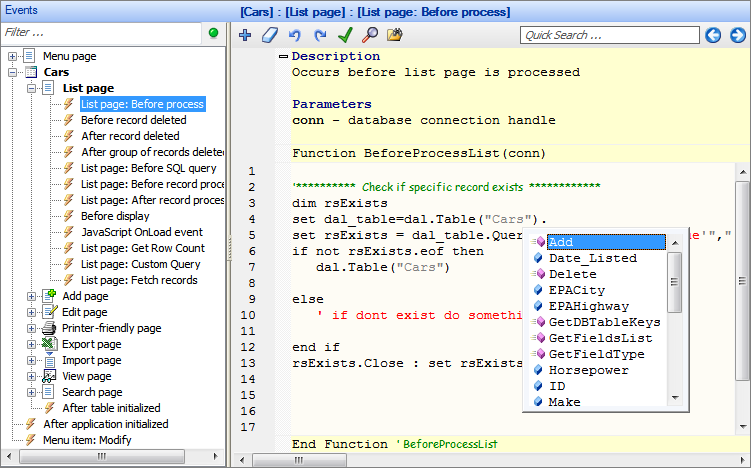
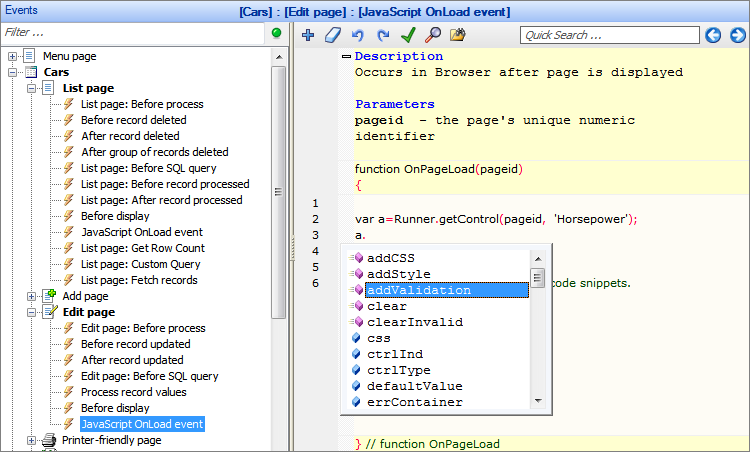
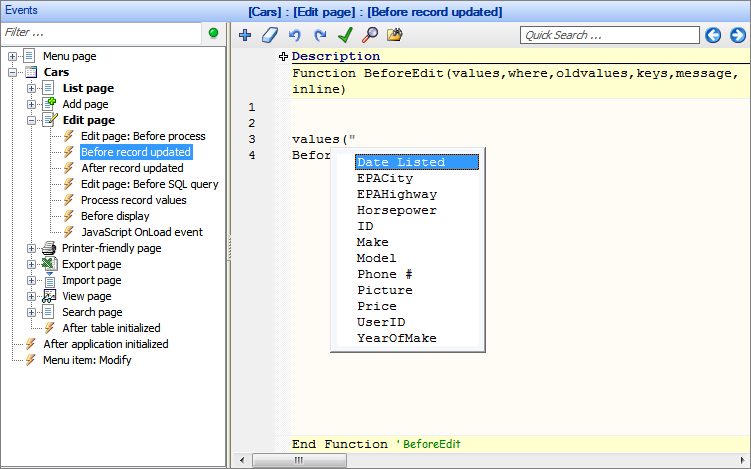
Intellisense is a convenient way to access the descriptions and variables of the functions. The Event editor recognizes the functions and variables and shows the function description or the list of available variables to choose from in a popup.
Here are a few examples:
Data Access Layer, database field names
JavaScript API functions
Field names
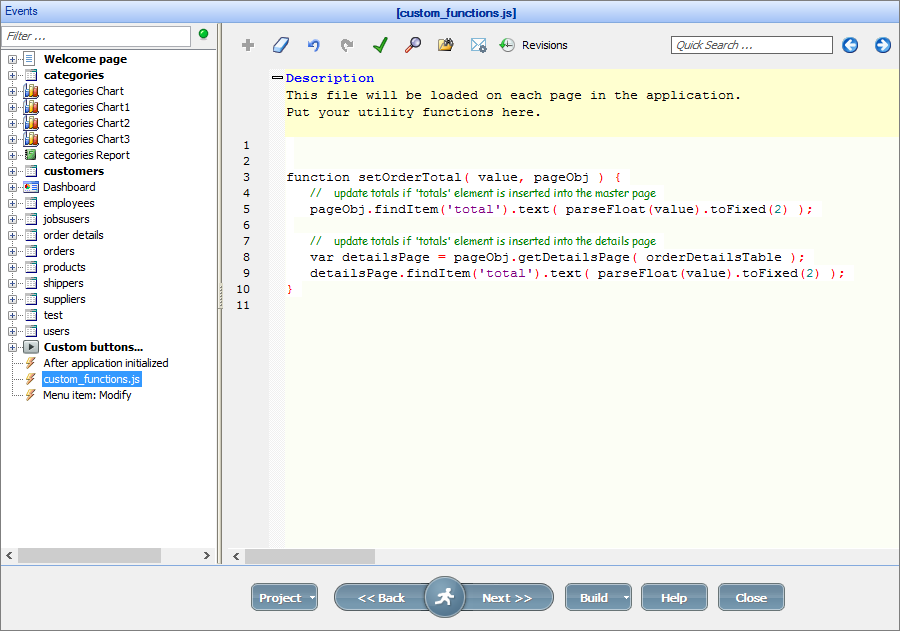
Starting with ASPRunnerPro version 10.3, you can find a custom_function.js file in the event tree in the left pane. This file is loaded on each page in the generated application.
Custom_function.js is best suited for utility functions. For example, you can add an OrderTotal calculation to this file to Show order total on the Edit page as the details table is updated.
Here is how the cuctom_function.js window looks like on the Events screen:
See also: