Quick jump |
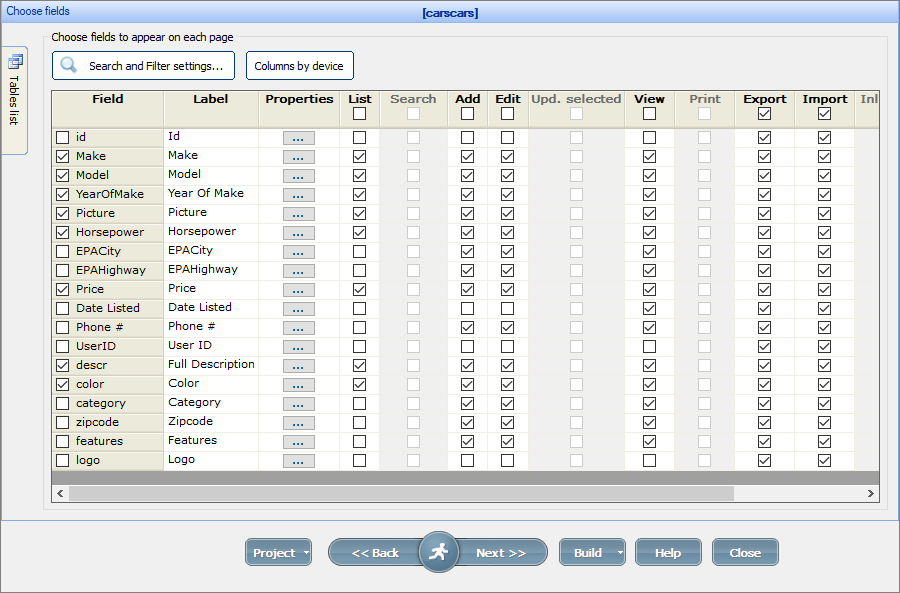
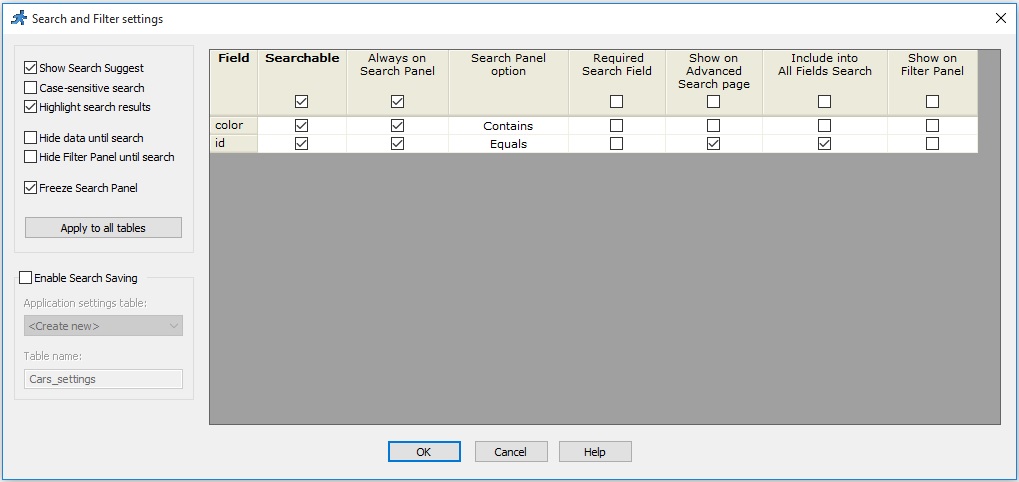
Use the Choose fields screen to select the fields to appear on each page. You can display different fields on different devices. You can also adjust search and filter settings.
Users can search by each word or by the whole phrase if double-quoted (Google-like search).
Click Apply to all tables button to apply the selected options to all tables.
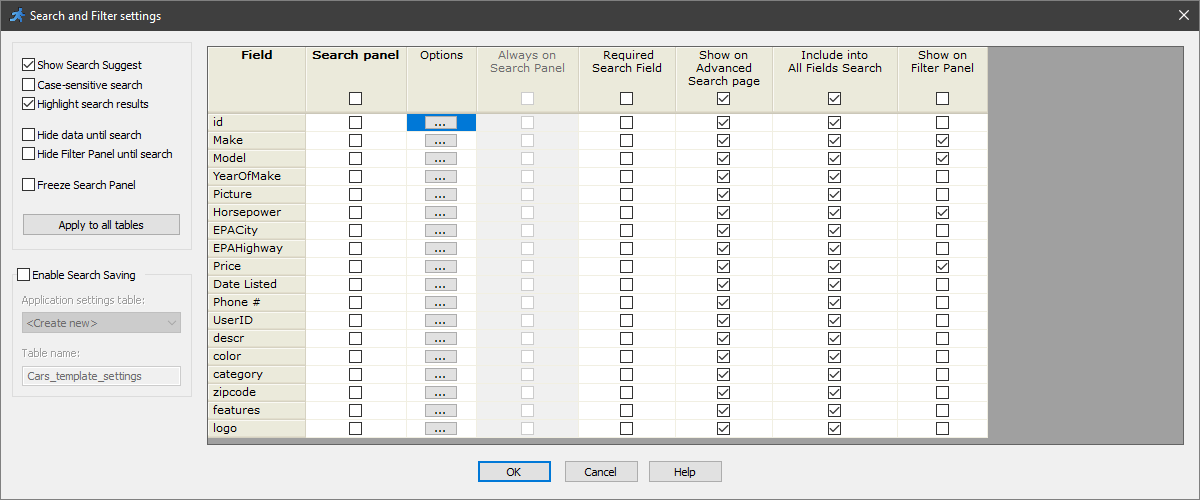
Show Search suggest
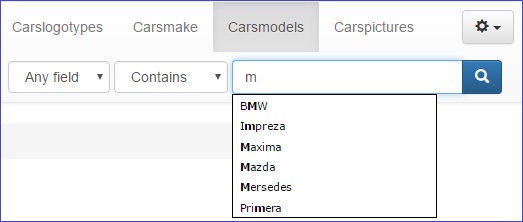
When you start typing in the search box, an AJAX popup displays search suggestions. For more information, see AJAX-based Functionality: AJAX Auto Suggest.
Example of the search suggest feature on the basic search page:
Case-sensitive search
Use this option to display only the search results that match the case of your search query. If this option is not selected, the search becomes case insensitive.
Note: in MySQL for case-sensitive search you also need to make sure that case-sensitive collation is selected. In MySQL you can simply select a collation with _cs postfix. In earlier versions of MySQL you can select a binary collation like utf8_bin.
An example of setting the collation for database Northwind, table Customers, field ContactName.
ALTER TABLE `customers` COLLATE='utf8_bin';
ALTER DATABASE northwind CHARACTER SET utf8 COLLATE utf8_bin;
ALTER TABLE `customers` MODIFY ContactName VARCHAR(255) CHARACTER SET utf8 COLLATE utf8_bin;
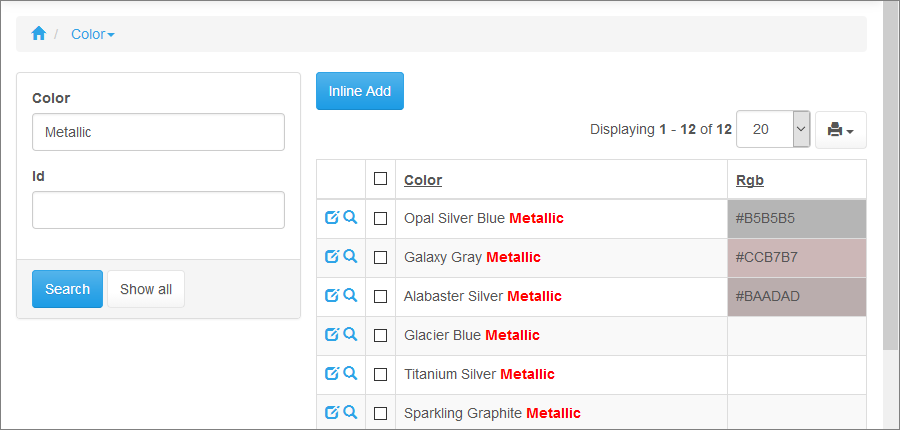
Highlight search results
Use this option to highlight search results in the database grid.
Freeze Search Panel
You can define the default search option (Equals, Contains, etc.) for each field on the search panel.
Searchable fields
When you make a field searchable, you allow searching by this field in the Quick search panel. You can also define other search options such as Always on Search panel, Show on Advanced search page and Include into All fields Search for this field.

Note: to be able to make the field searchable, enable the Show basic search options option for the List page on the Choose pages screen.
Options
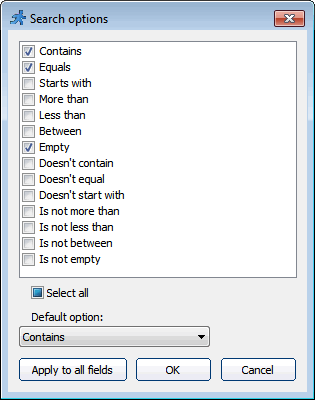
You can select what search options are available for each field on the search panel. You can also define the default search option for each field.
Always on Search panel
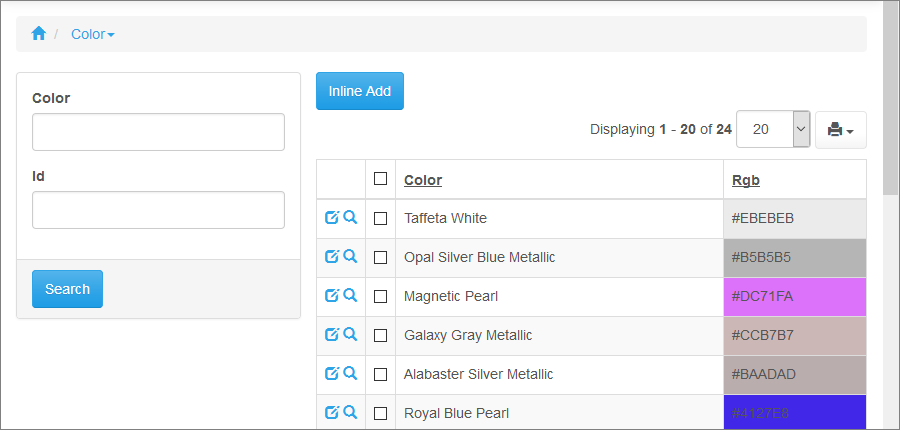
Use this option to add fields to the search panel on the List page. The search panel allows you to define the search criteria.
Required Search field
This option restricts search until users fill in the required search fields. For example, the Real estate template does not show any data until the zip code is entered.
Show on Advanced Search page
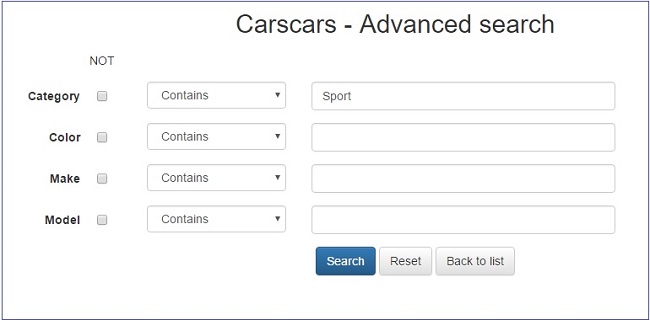
Allows displaying the fields on the Advanced search page.
All fields search
Use this option to add fields to the 'All fields' quick search.

Show on Filter Panel
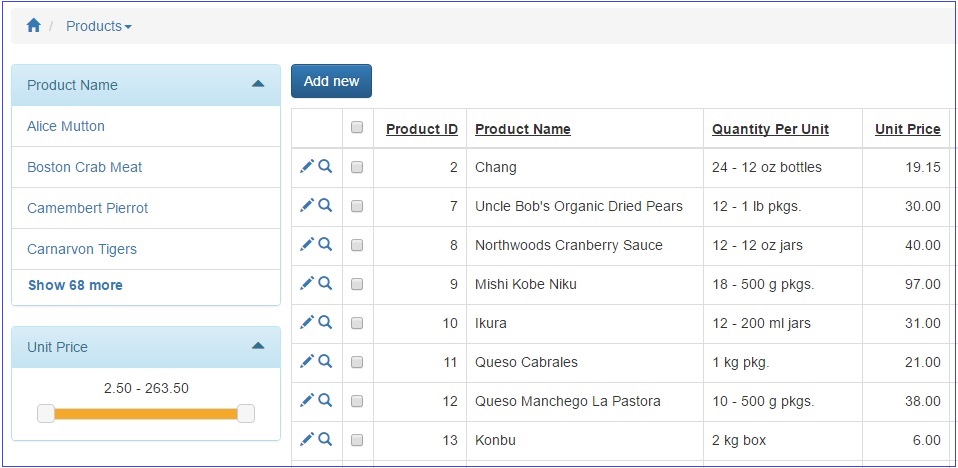
Allows displaying the fields on the Filter Panel. Filters provide instant feedback on the number of records matching each criterion. You can select multiple criteria or multiple intervals for each filter. The Filter panel is located on the left side of the generated app. For more information about filter settings, see "Filter as" settings.
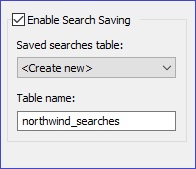
Enable Search Saving
When searching for data using the Search panel, you can save searches in the database for later retrieval (use the Save search button in the browser). Select <project_name>_searches as the table for saving searches or create a new one.
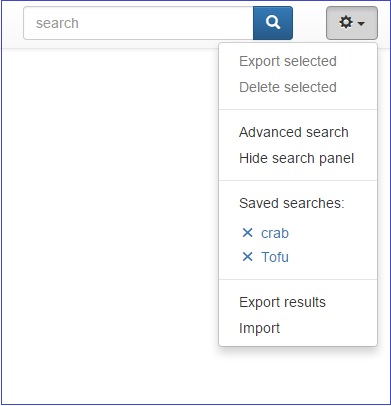
To view the saved searches, click Saved searches on the Search panel.
"OR" Search
You can easily implement OR search in your projects. Previously you had to add the same field twice or thrice to the search panel in order to implement the OR search. Now all you have to do is to make the search field a lookup wizard and enable multi-select on the search page. Now you can easily display orders that belong either to Customer 1 or to Customer 2 or to Customer 3. Configure CustomerID as a Lookup wizard, choose 'Different settings on each page' option, make it multi-select on the Search page, leave it single select on Add/Edit pages.
Here is how it looks in the generated application.
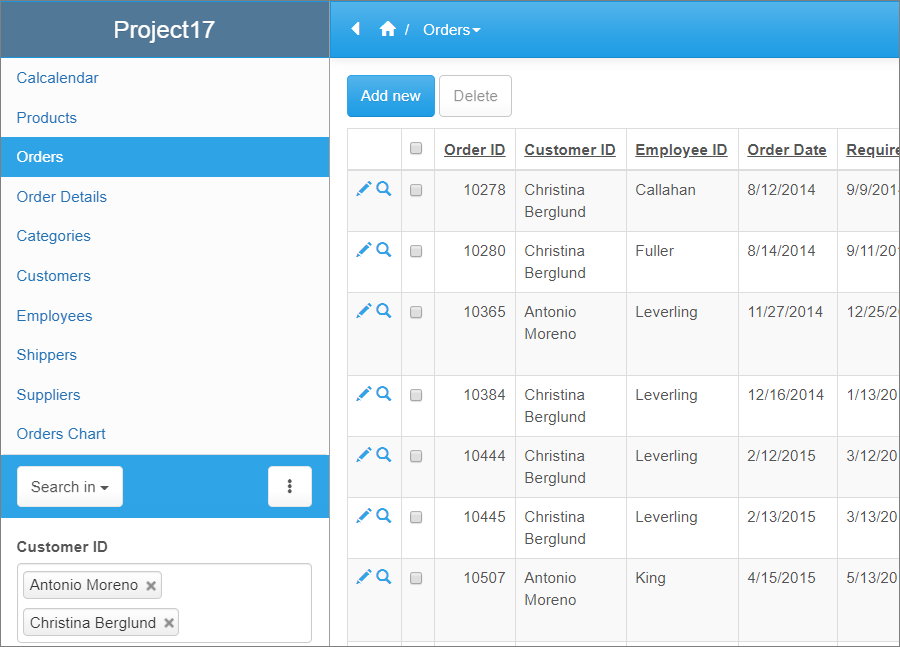
Here is the video that explains how to configure OR search in version 10.4.
See also: