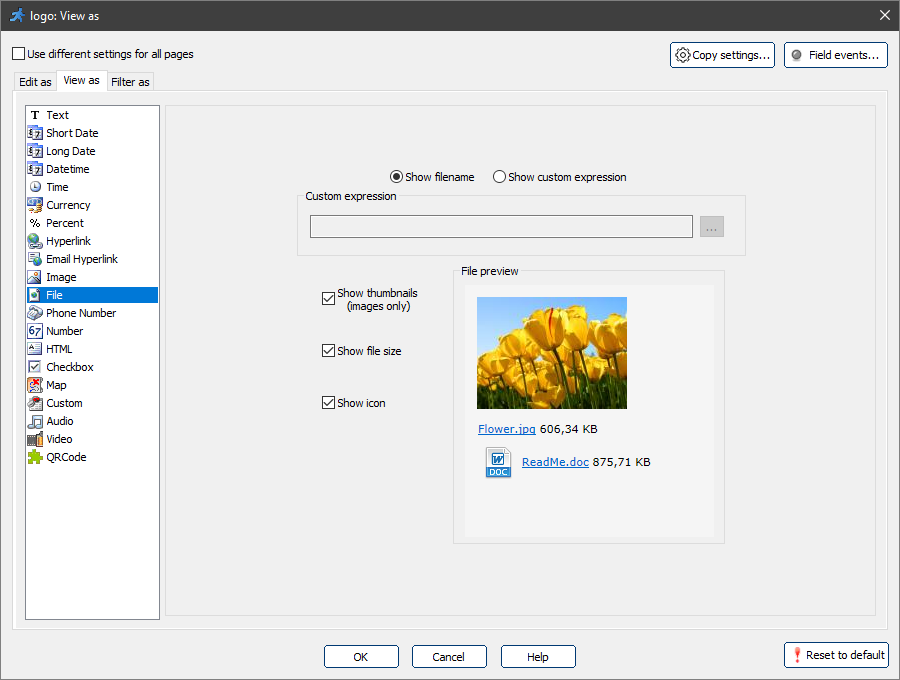
You can customize the data appearance on the List/View/Print/Export pages using formatting options on the View as settings dialog. You can define the field settings for all pages at once or separately for each page.
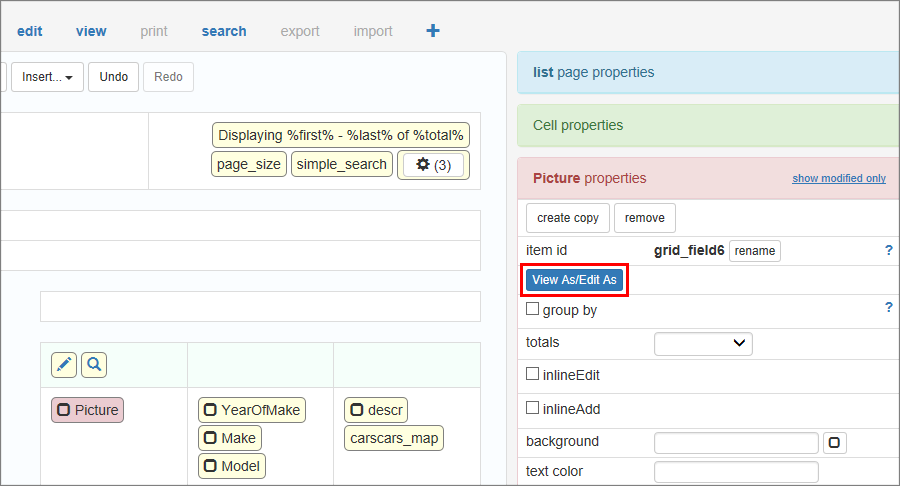
To control the field appearance on the page, click on the field and then on the View As/Edit as button in the properties.
To set different field formats for different pages enable the Use different settings for all pages checkbox.
Depending on the selected format, you will see different dialogs.
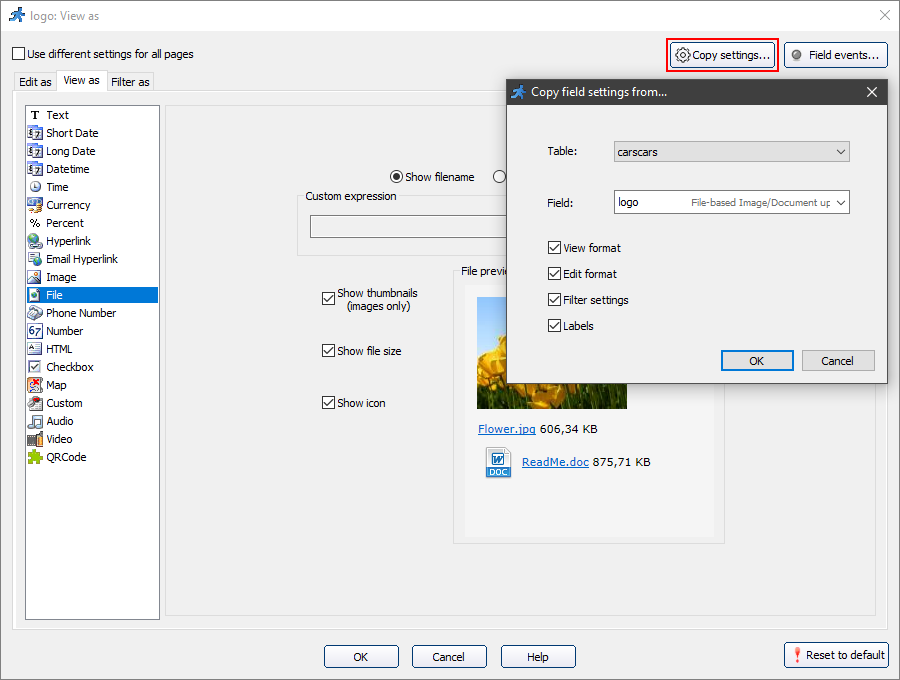
Copy settings option allows you to copy field settings from another field.
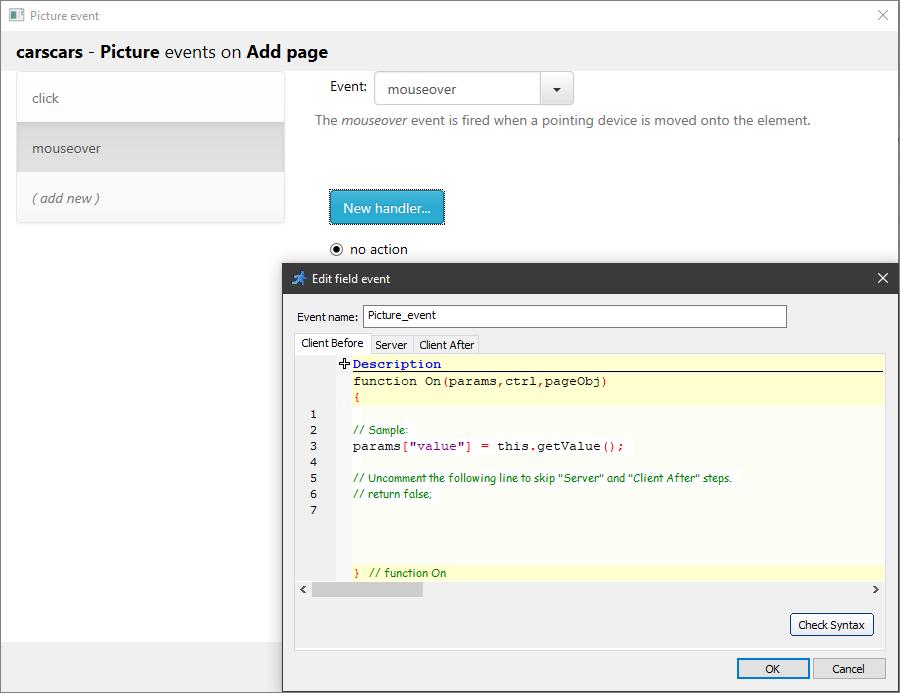
Field events option allows performing an action when the cursor enters, leaves or is over an edit field. Perform any sort of validation, make other fields hidden or required, etc. Field events are designed to work on Add, Edit, View and Register pages.
For example, the mouseover event occurs when the pointer is over the selected element.
The values are displayed as simple text.

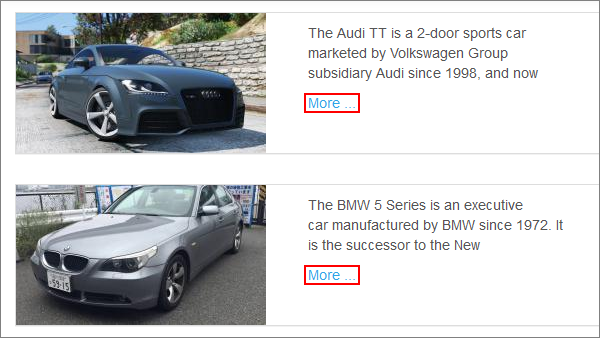
Truncate large text fields
This option limits the number of characters that can be displayed in a single text field on a page. The "More ..." link appears if the number of characters is higher than the number you have entered into the Characters to display field.
Note: for this option work correctly, you must choose the key field for the selected table on the Choose pages screen.
Show 'Copy to clipboard' button
Useful for the fields that are meant to be copied like addresses or API keys

View as hyperlink
When you configure 'View as' settings of a field that is a lookup wizard or a link field of the child table, you have an option to make it a hyperlink.
If this option is selected by clicking on this field you can display a View page either of a lookup table or of a parent table. You can choose which View page to show or how to open that page ( proceed directly in the same browser window, open in a new tab, open in popup ).

Dates will be displayed in a short format ( 02/17/2003 ).
Long Date
Dates will be displayed in a long format ( 17 February 2003 ).
Datetime
Datetime values will be displayed as date and time ( 02/17/2003 14:22:03 ).
Time
Datetime values will be displayed as time ( 14:22:03 ).
Currency
Numeric values like 14000 will be displayed as $14 000.00 (actual format depends on your system regional settings like currency symbol, decimal symbol, etc.).
Percent
Example: 0.38 will be displayed as 38%.
Hyperlink
Choose this format if you store hyperlinks in this database field. Those hyperlinks will be made clickable automatically.
Email Hyperlink
Choose this format if you store email addresses in this database field. It will be converted into mailto HTML code automatically.
File
Choose this format if you store files in this field. For more information, see "View as" settings: File.
Image
Choose this format if you store images in this field. For more information, see "View as" settings: Image.
Phone number
Formats number as a US phone number. Supports 7-digit or 10-digit numbers (123) 456-7890 or 123-4567.
Number
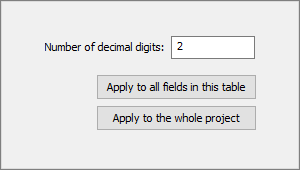
Choose this format if you like to format this field as a number. You can set the default number of digits after the comma for all numeric fields.
HTML
Use this view type when you store formatted HTML code in the database field and wish to display this HTML code on the List page.
Use this view format to present field value as a check box. Works best with the following data types:
•MS Access: Yes/No field
•SQL Server: TINYINT or BIT field
•MySQL: TINYINT
•Oracle: NUMBER(1)
Map
Allows adding maps to the web pages. For more information, see "View as" settings: Map.
Custom
Allows formatting field values by adding C#/VB.NET code. For more information, see "View as" setting: Custom.
Audio
Choose this format if you store audio files in this field. For more information, see "View as" settings: Audio.
Video
Choose this format if you store video files in this field. For more information, see "View as" settings: Video.
QRCode
The QRCode control allows you to add QR Codes to your pages. For more information, see "View as" settings: QRCode.
See also:
•How to access fields in the field events