Internet Information Services (IIS) is a web server software included with Windows. IIS makes it easy for you to publish information on the Internet or your intranet. IIS includes a broad range of administrative features for managing Web sites and your Web server.
Note: IIS isn't installed by default when you install Windows.
To install IIS on Windows 7/8/10
1.Click Start -> Control Panel -> Programs and Features.
2.Click Turn Windows features on or off. You may be prompted for an administrator password or confirmation.
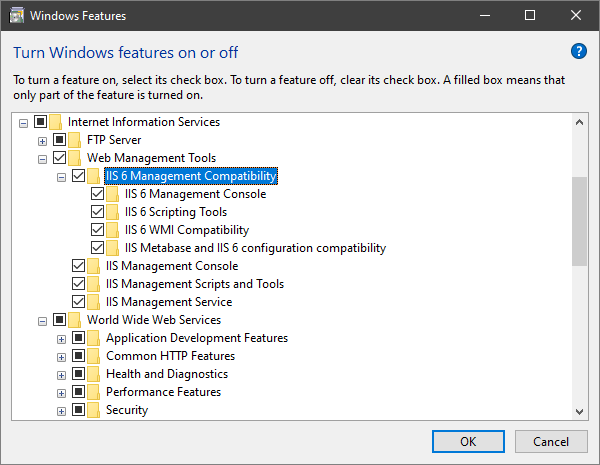
3.In the list of Windows features, go to Internet Information Services -> Web Management Tools and select all options there.
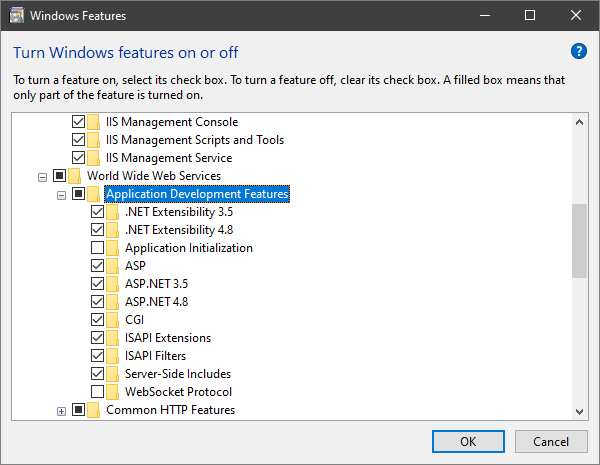
4.Then go to World Wide Web Services -> Application Development Features and select ASP, ISAPI Extensions, and ISAPI Filters. Click OK.
To test your web pages using IIS, launch ASPRunnerPro as an administrator.
When using a 64-bit version of Windows, you should also perform the following:
1.Click Start -> Control Panel -> Administrative Tools.
2.Open Internet Information Services (IIS) Manager.
3.Click ASP -> Application pools.
4.In the Advanced settings, set Enable 32-bit applications to True for all application pools.
To install IIS on the previous versions of Windows
1.Click Start -> Control Panel -> Add or Remove Programs.
2.Click Add/Remove Windows Components. When the Windows Components Wizard appears, click Next.
3.In the Windows Components list, select IIS.
4.Click Next and follow the instructions.
To test your web server, open your browser and type http://localhost in the address bar. If you see an IIS welcome page, the installation was successful.
See also: